
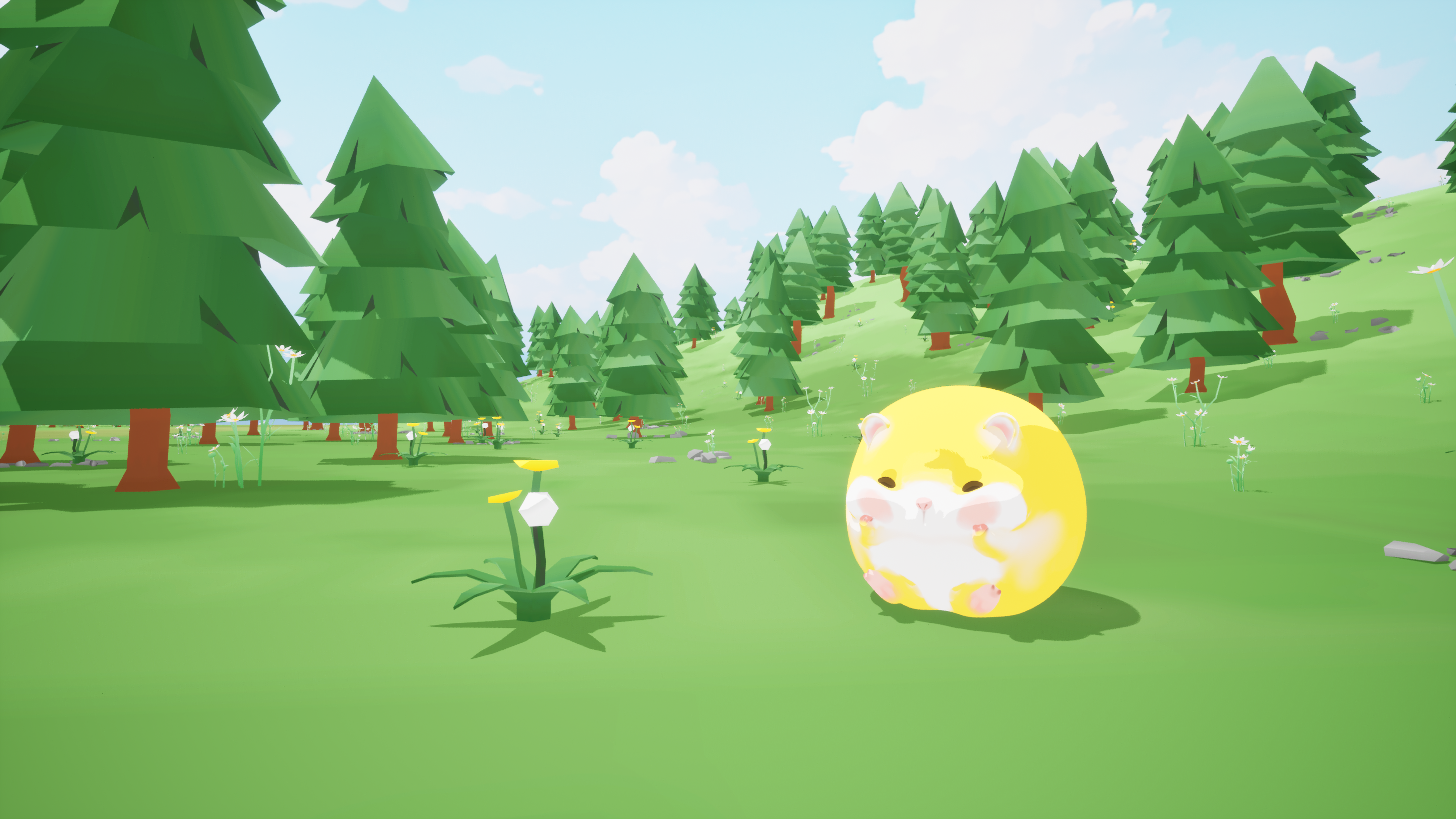
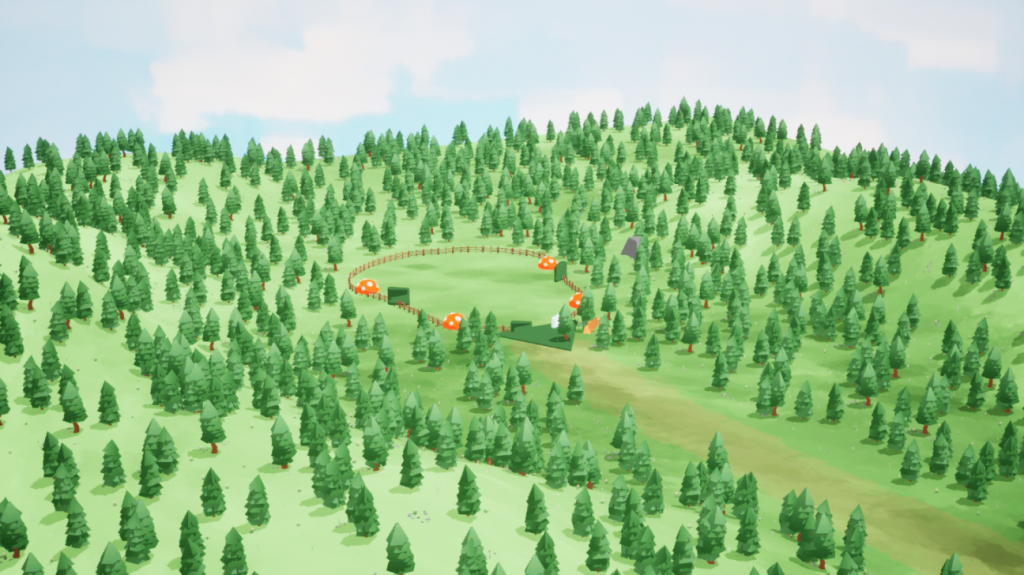
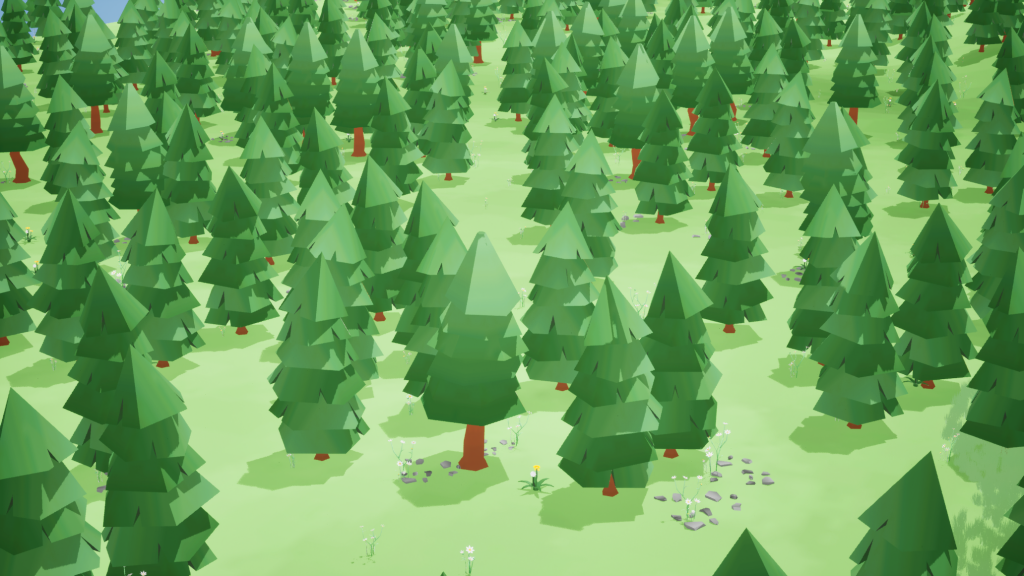
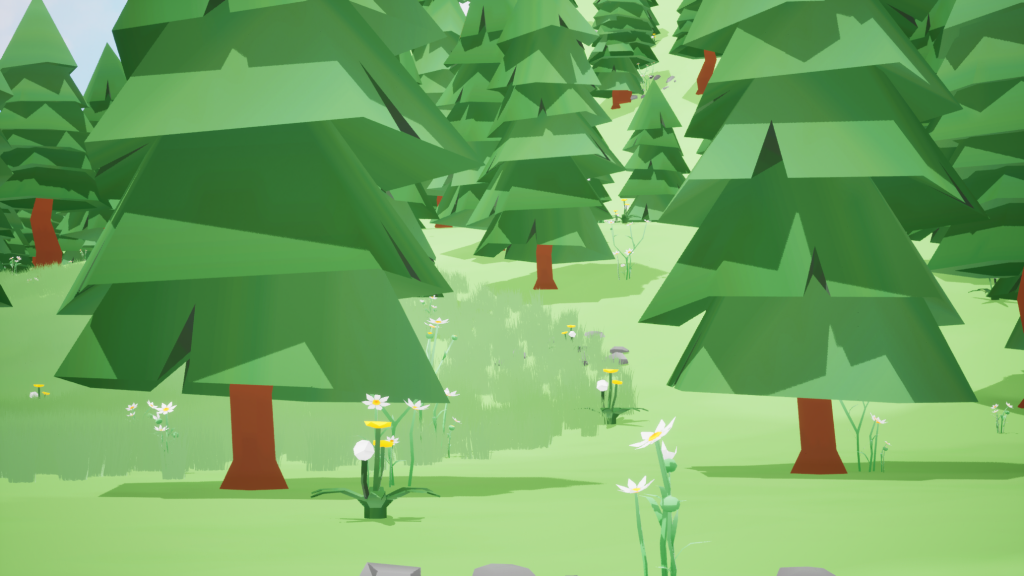
Our scene design focuses on a cartoon style with low-poly models. The game is about small animals in a forest using their skills to defeat enemies, so the main scene is set in a forest.
Game Showcase
Game Demo
Game VFX
Landscape Material
Substance Designer Process
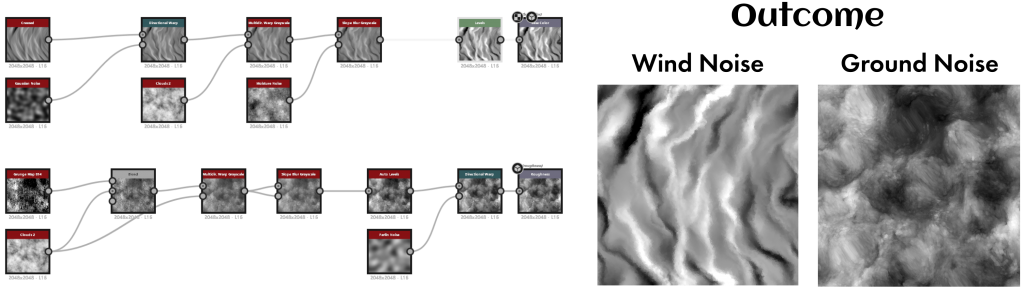
Blend multiple Noise Patterns to create the Base Roughness Texture, using Directional Warp and Slope Blur nodes to enhance natural variation
Runtime Virtual Texture
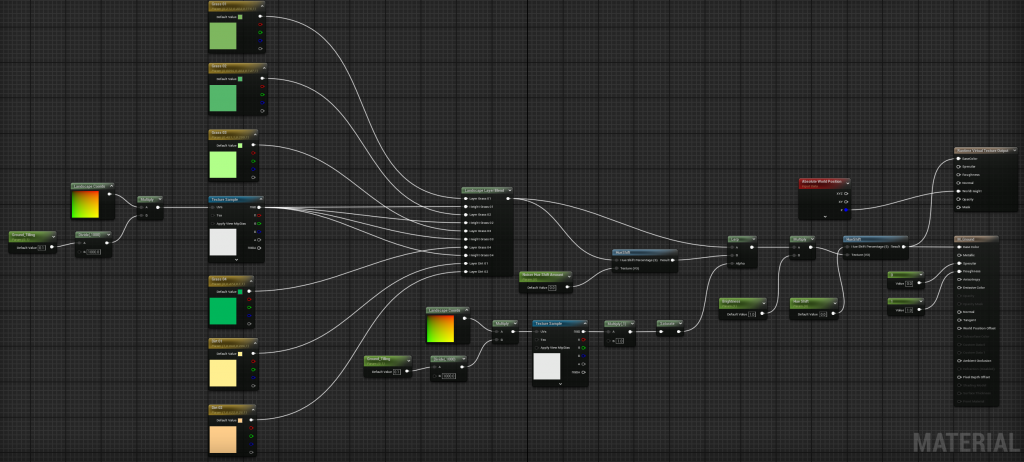
Set up a layered blend material with Landscape Coordinates for UVs and Ground_Tiling for texture tiling. Landscape Layer Blend mixes textures (e.g., grass, dirt) for painting. Add Layer Info in Landscape Mode –> Paint to enable four grass and two dirt colors.
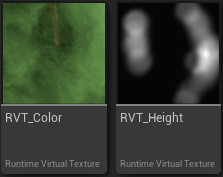
Create two Runtime Virtual Textures for Base Color and World Height.
Add RVT_Color_Volume and RVT_Height_Volume to the scene, align them to the Landscape, and click Set Bounds to generate the textures.
PCG Graph
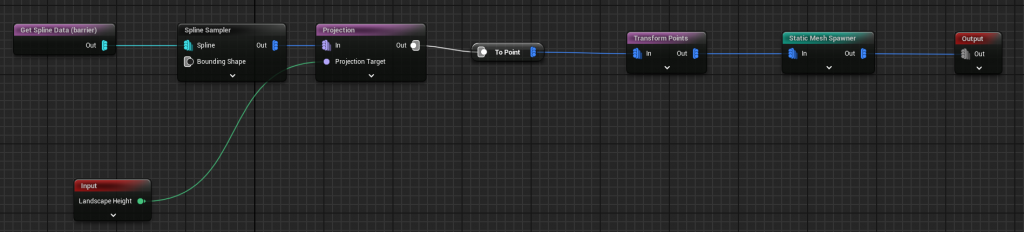
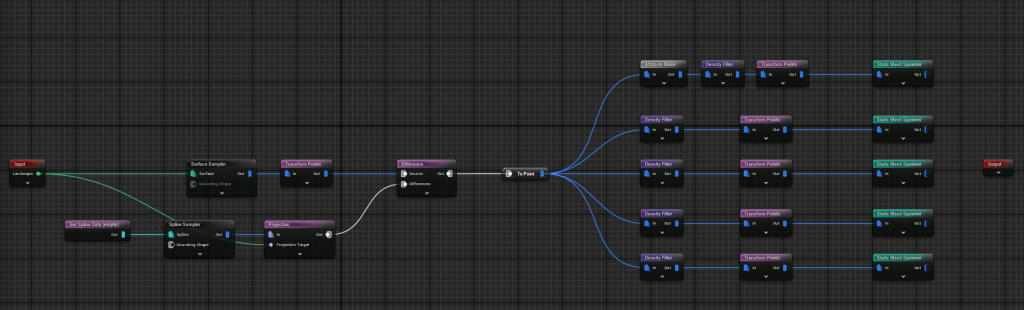
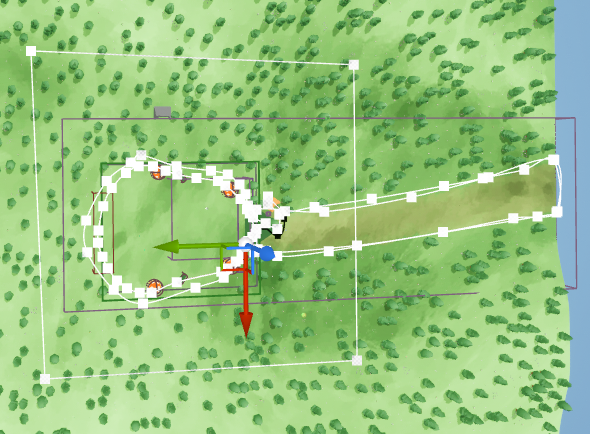
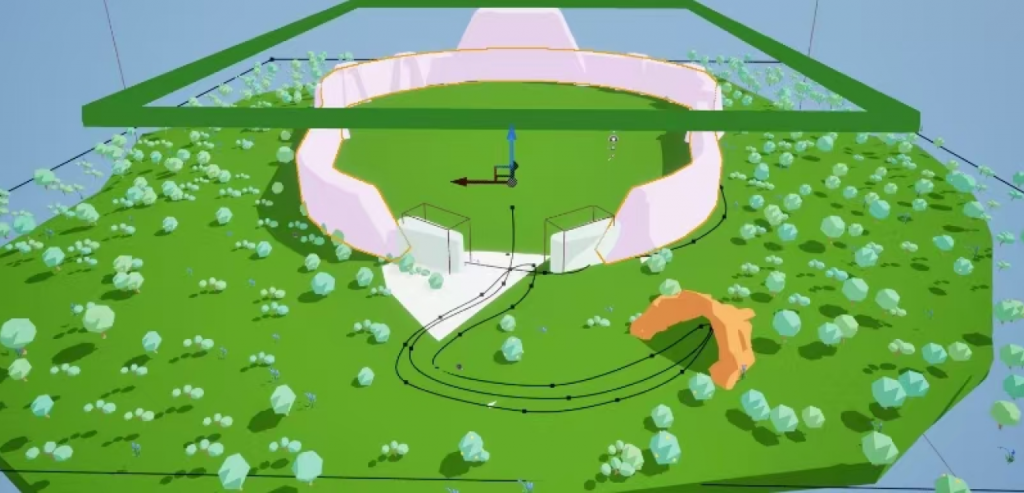
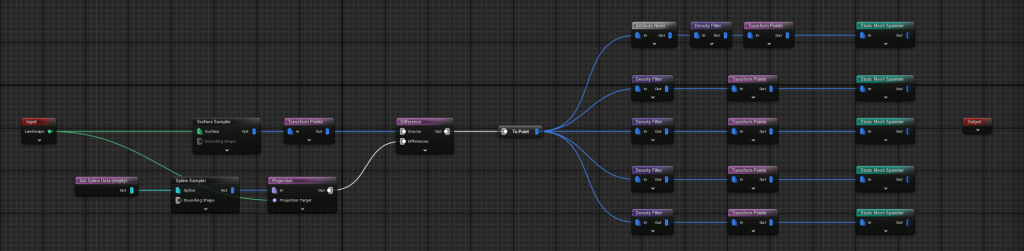
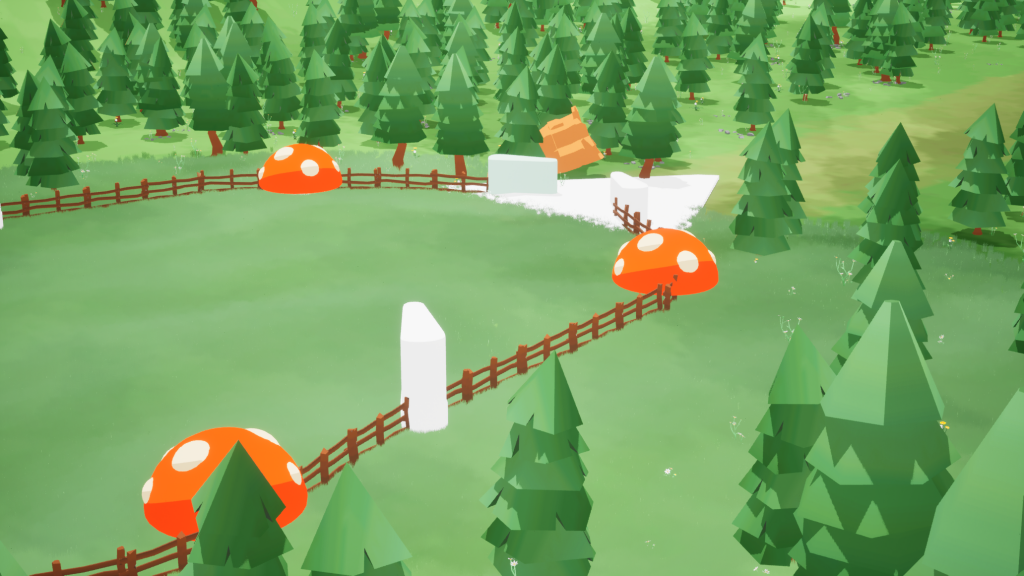
PCG_Barrier defines playable boundaries with spline-based meshes.
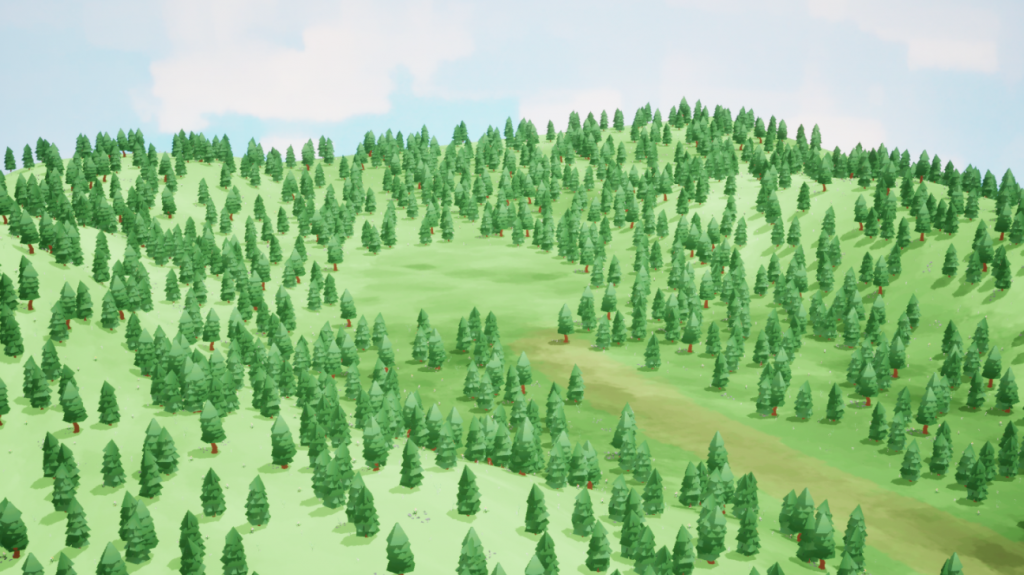
PCG_Landscape adds trees, flowers, and rocks, excluding the main scene and roads.
Toon Shader
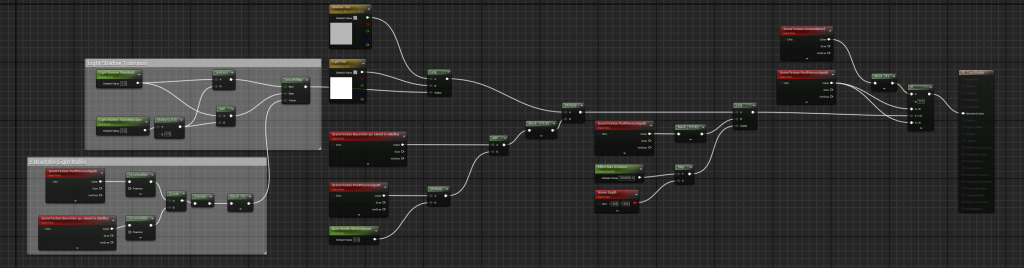
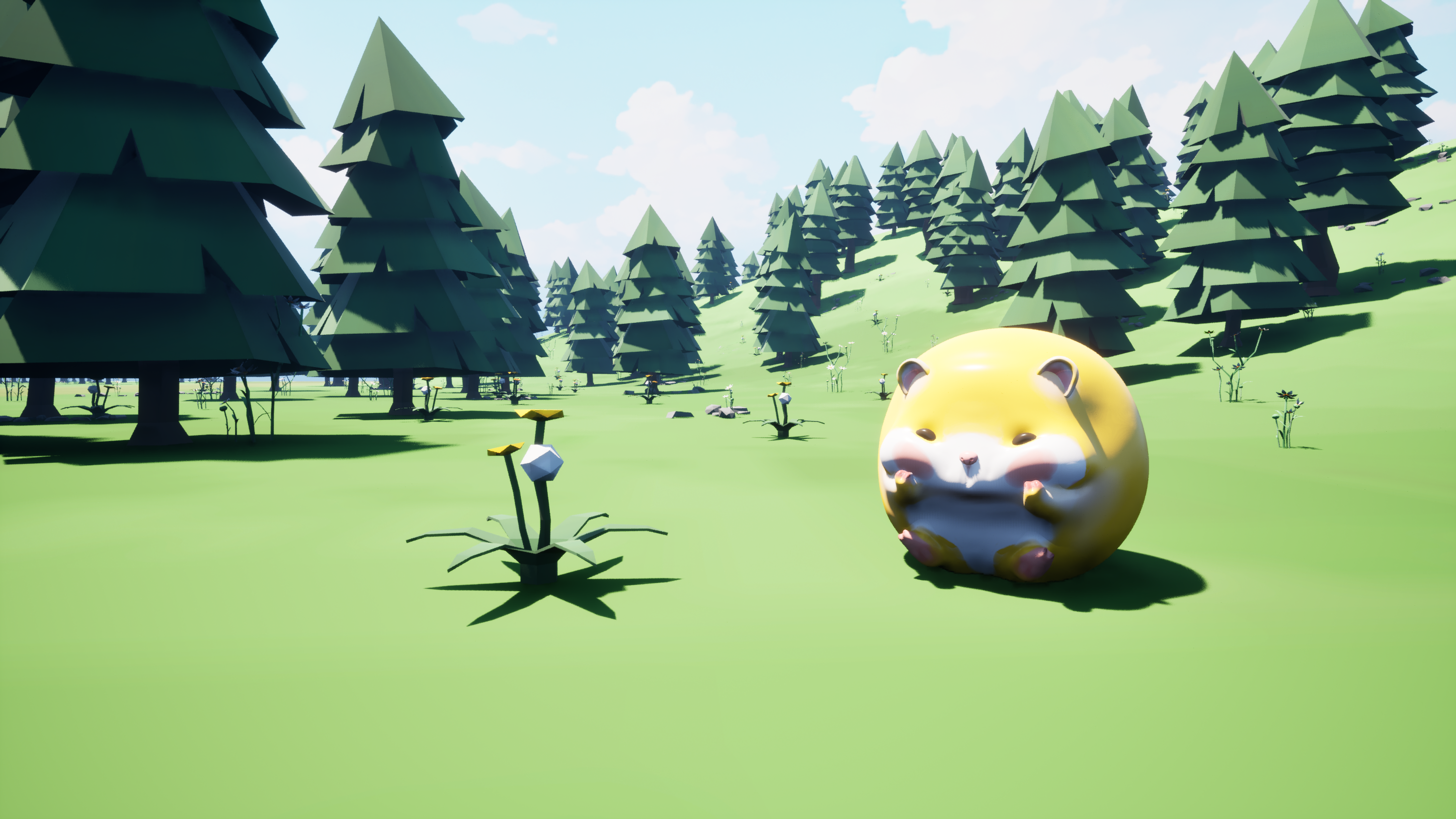
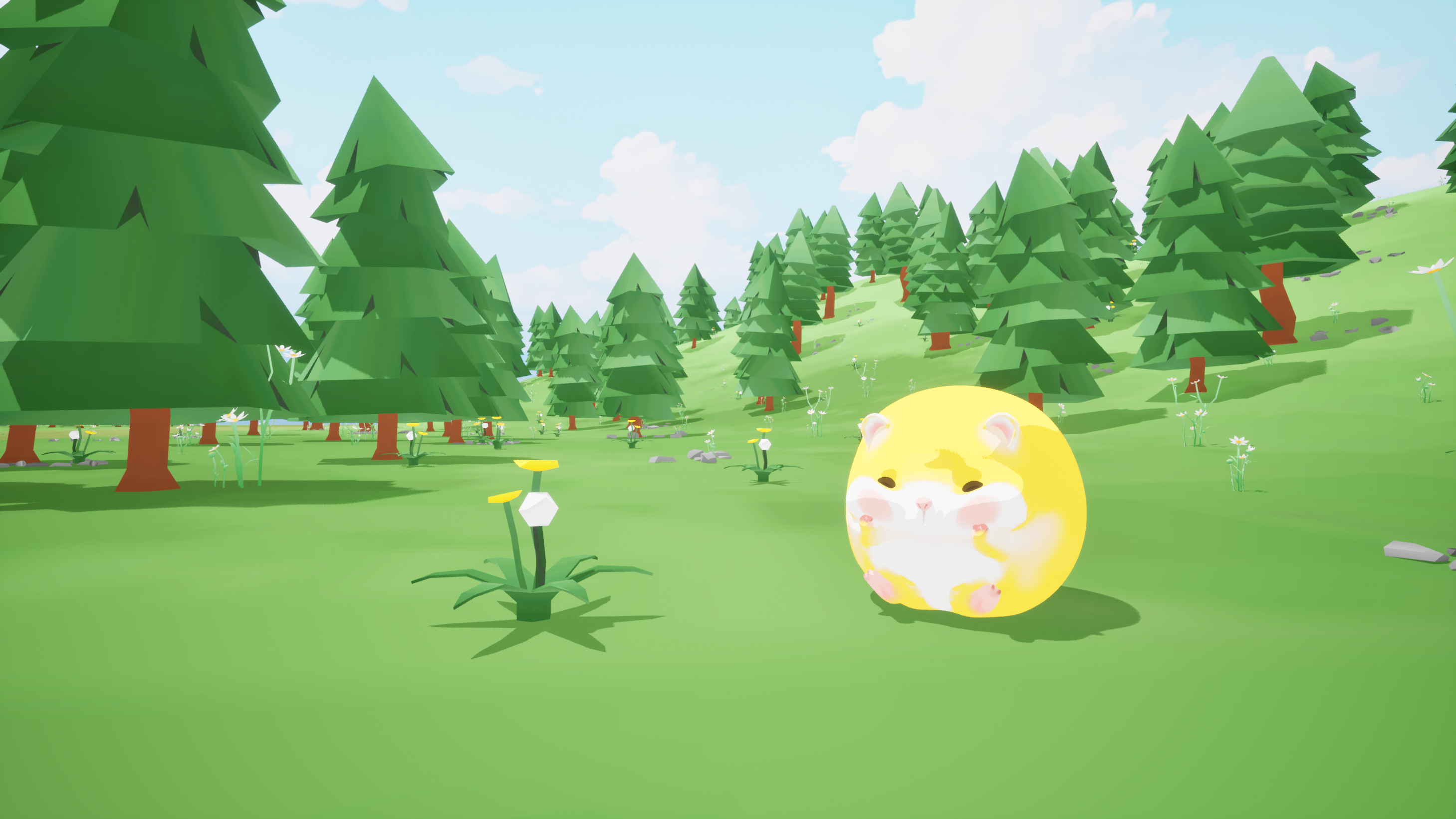
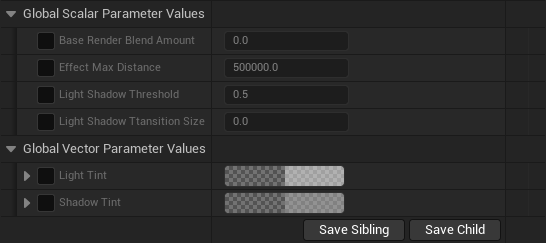
Use Constant, Multiply, and Add nodes to adjust thresholds and transition sizes. The SmoothStep node creates smooth transitions, while Lerp controls light and shadow edges based on the threshold. SceneTexture extracts scene textures, then Desaturation and Threshold nodes enhance light-shadow contrast.
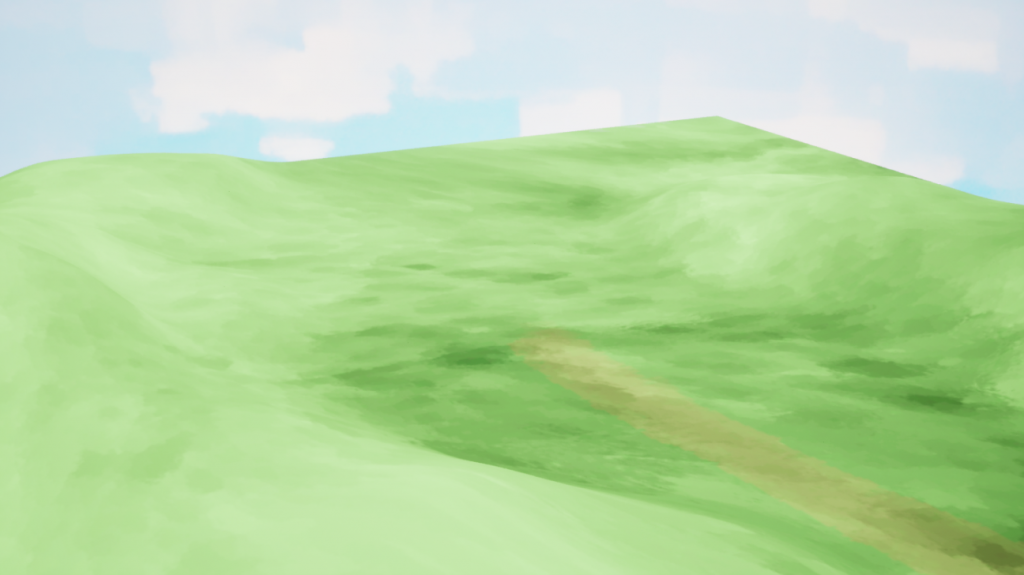
Landscape
Interactive Grass
Iteration 1
Ideas: Use Geometry Shaders and RT to modify grass vertices for dynamic effects, offering simplicity, Fast Response, and Low CPU impact by leveraging GPU power. Adjust based on performance and complexity needs.
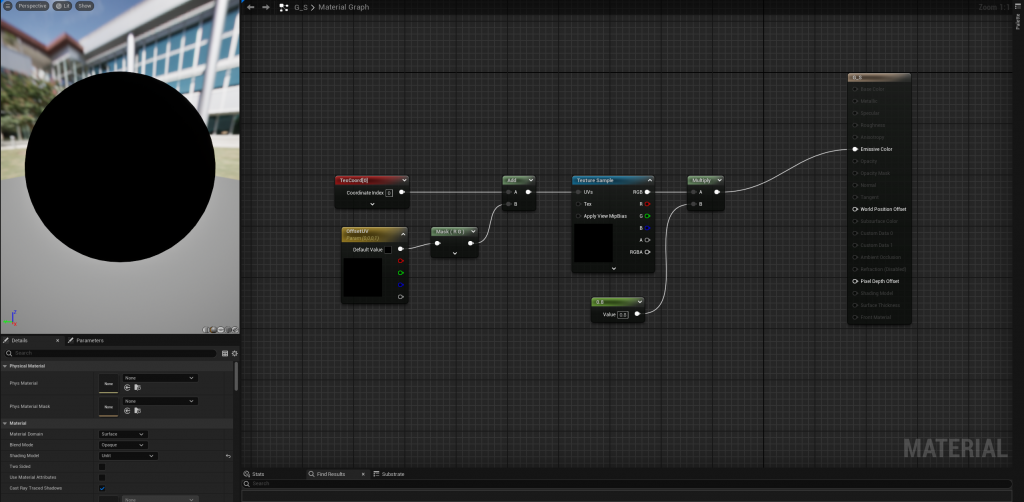
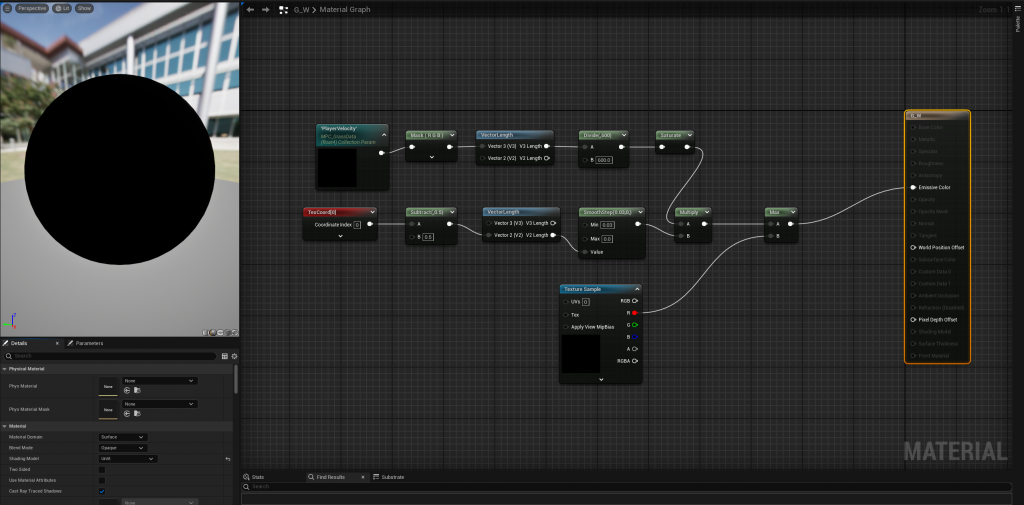
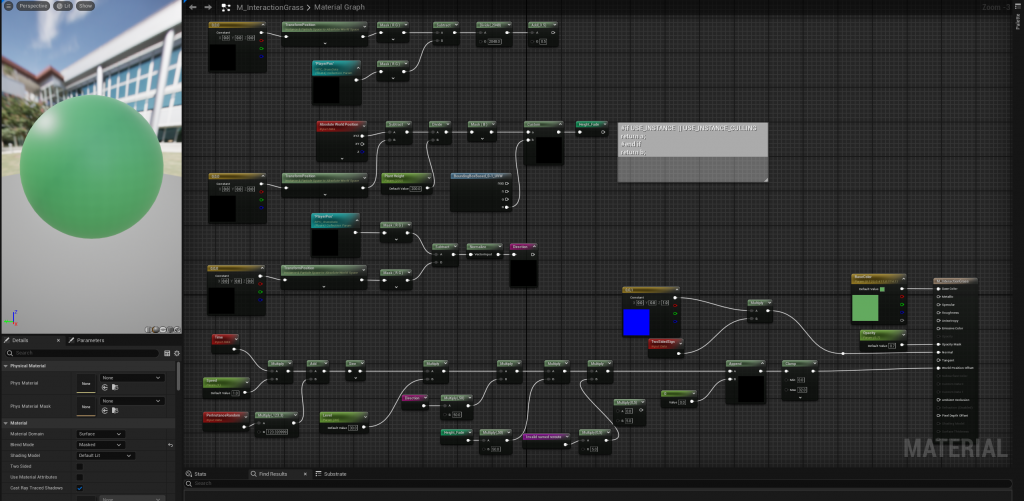
Calculate grass sway and tilt using Absolute World Position and player data. Use Transform Position for local coordinate adjustments and Time for animation speed.
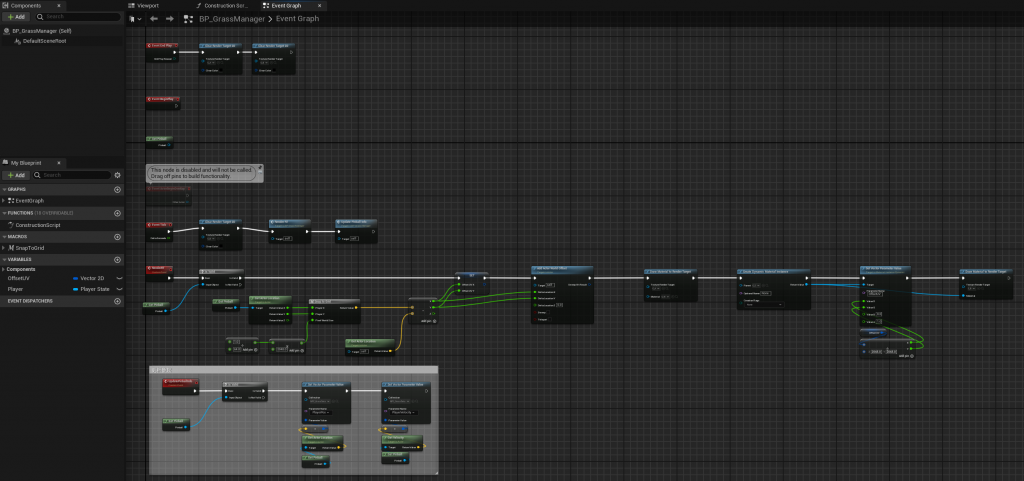
Use Vertex and Player Positions, along with other parameters, to calculate grass offset and deformation.
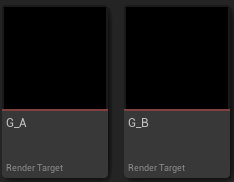
G_A and G_B are 64×64 images that dynamically reflect the real-time state of the Pinball.
Problem 1: No interaction effects on the grass.
Solution: The parameter value was too low; increasing the offset made the deformation visible.
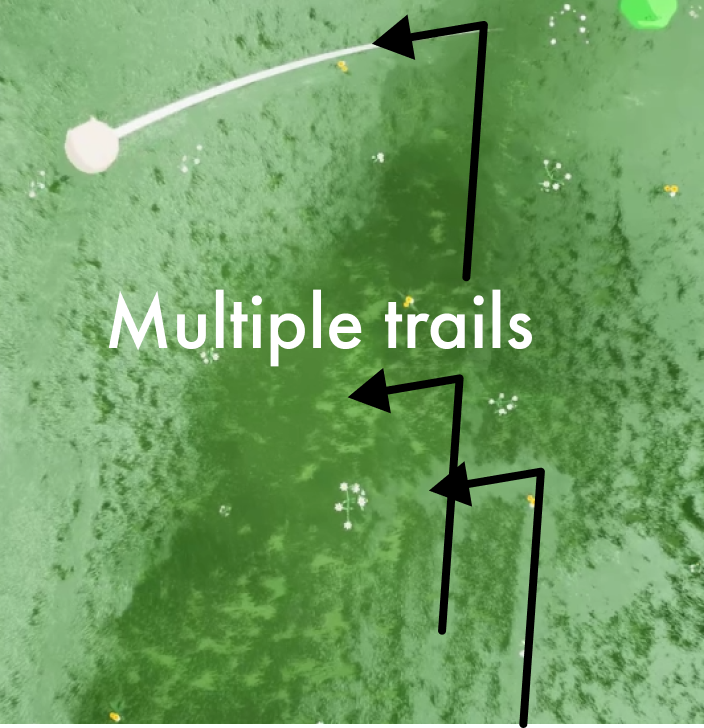
Problem 2: Anomaly with the trail persists even after shortening the duration. Multiple trails appear, and the pattern affects the grass.
I couldn’t solve this issue after checking all possibilities. It’s likely due to my limited skills. Since the interactive grass method is efficient, I’ll keep trying to fix it.
Toon Shader
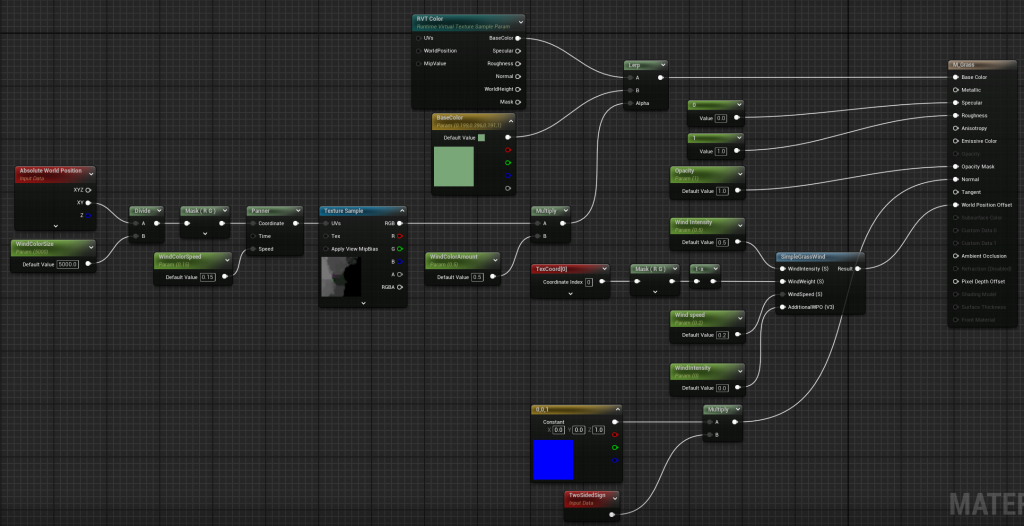
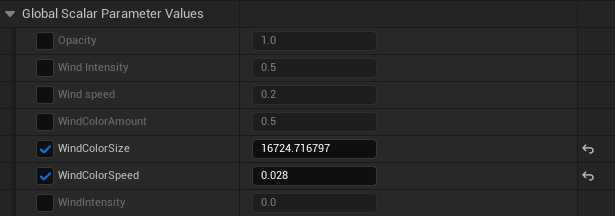
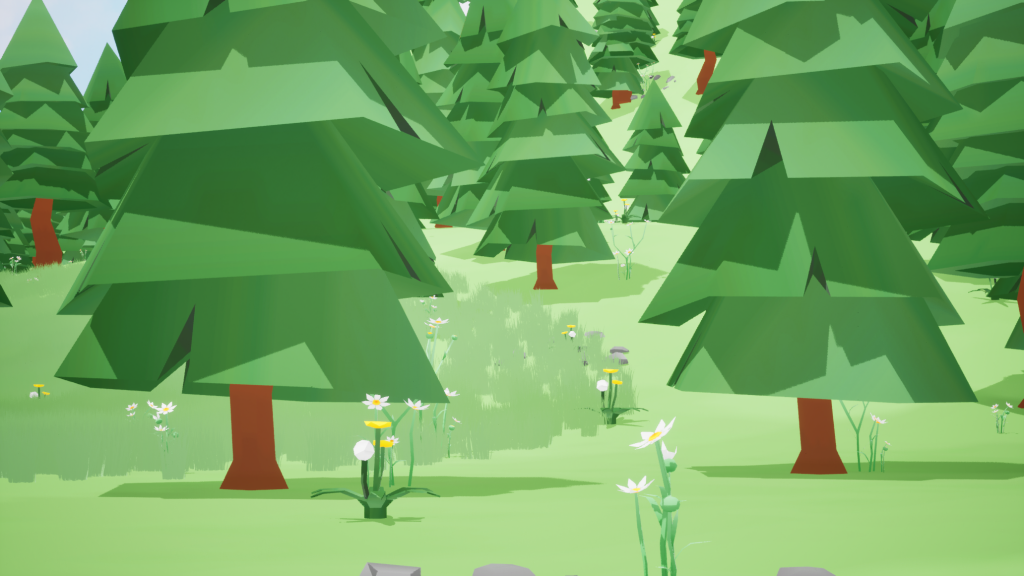
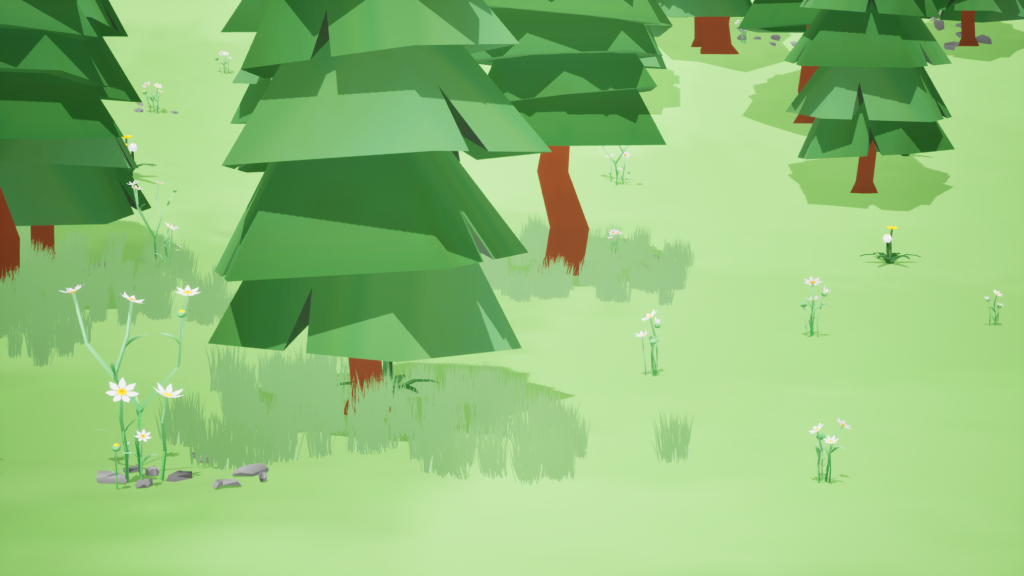
This material simulates grass swaying in the wind with color gradients. The SimpleGrassWind node adjusts positions for movement, while wind speed and gradient textures change the grass color for realism.
Outline Shader
Iteration 1
Approach: Edge Detection: The shader compares Depth and Normals to detect edges. Applying Outlines: When an edge is found, the shader adds an outline, customizable in thickness and color. Post-Process: This effect is applied in post-processing, adding outlines without altering models or textures.
Material Function Partial Display
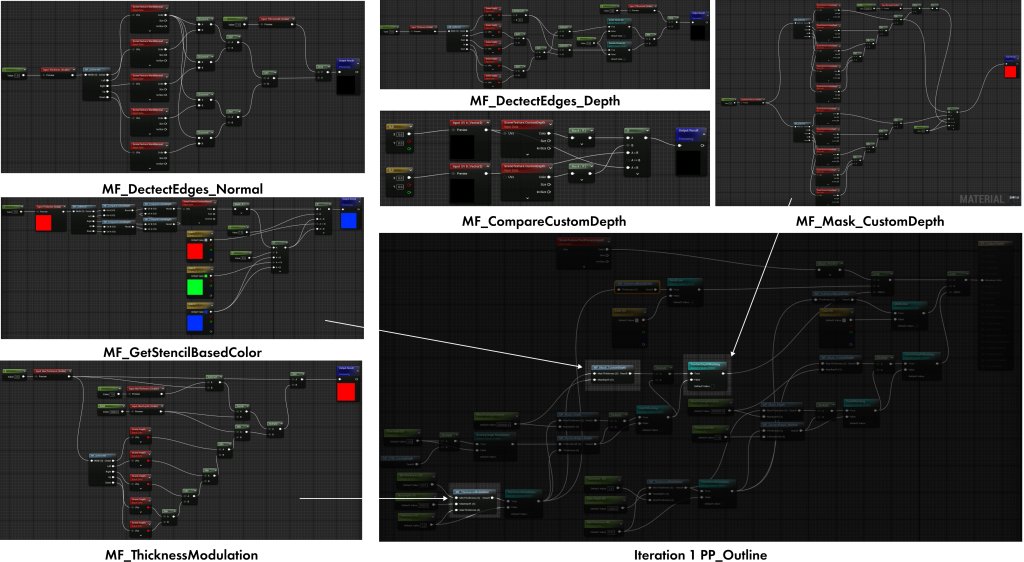
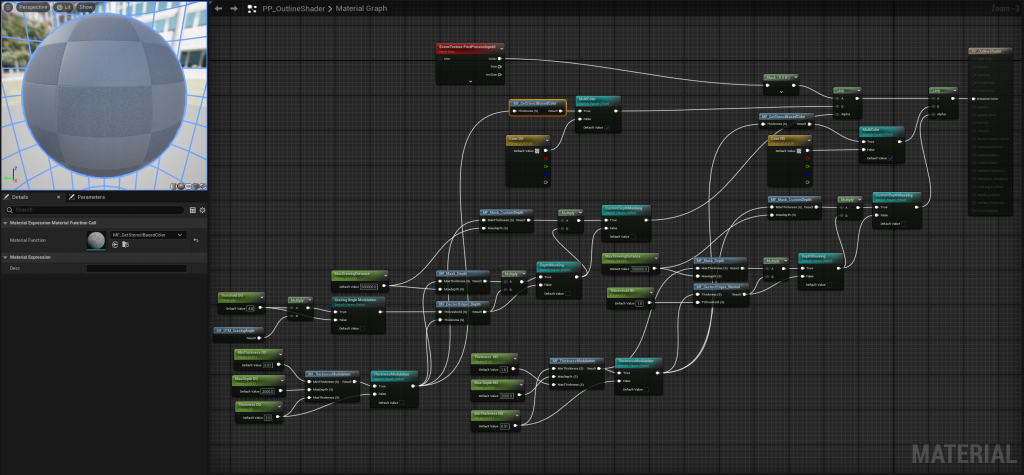
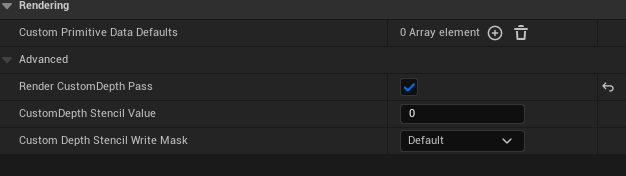
After adding the material to the Post-Process Volume, set Custom Depth-Stencil Pass to Enable with Stencil in Project Settings. Then, enable Render Custom Depth Pass for the objects to be outlined. Different Value settings give different colors.
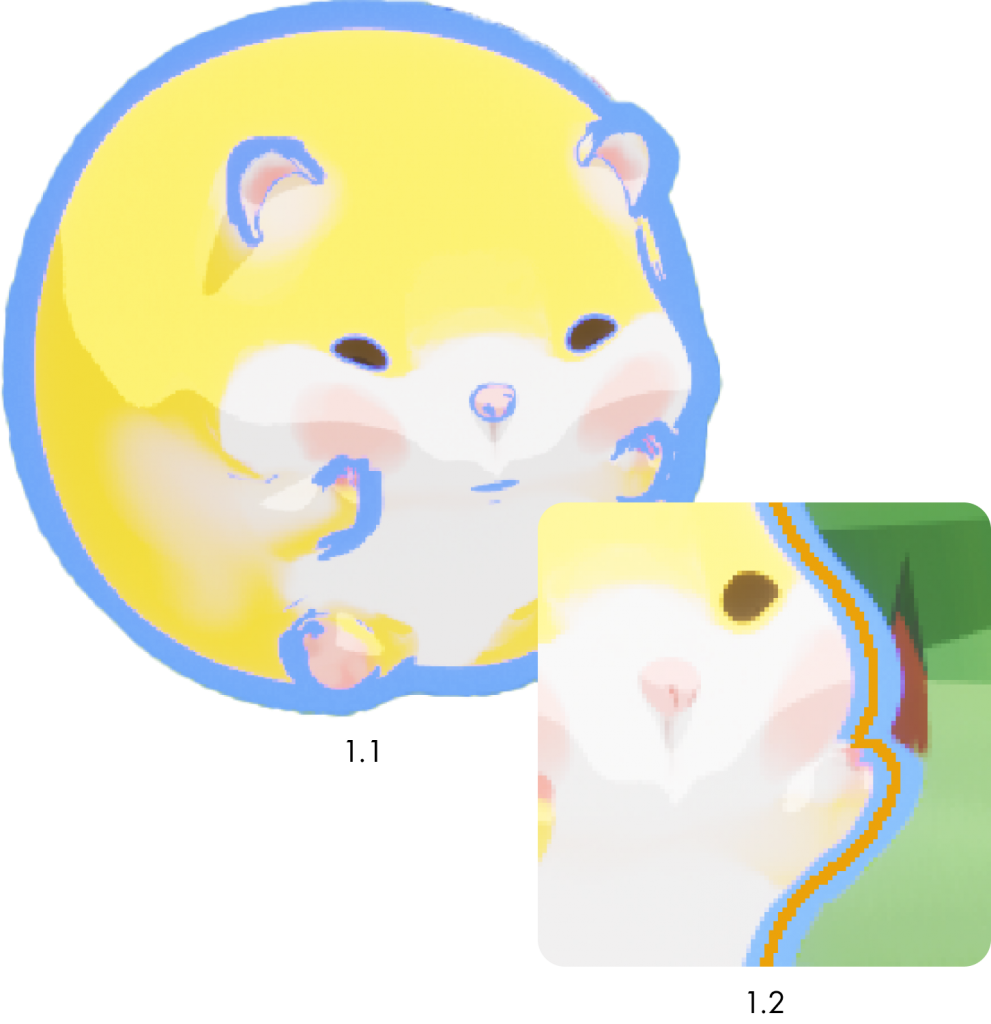
Problems:
- The first attempt didn’t fix the outlines inside objects.
- The outlines extended inward, and adjusting parameters didn’t improve the flickering effect.
Iteration 2
Approach: By combining Screen Position, Custom Depth, UV adjustments, and Edge Detection, this method dynamically renders object outlines.
Problem: In testing, this outline method causes flickering, noticeable jagged edges, and separation from the object, especially during pinball movement (2.1 & 2.2).
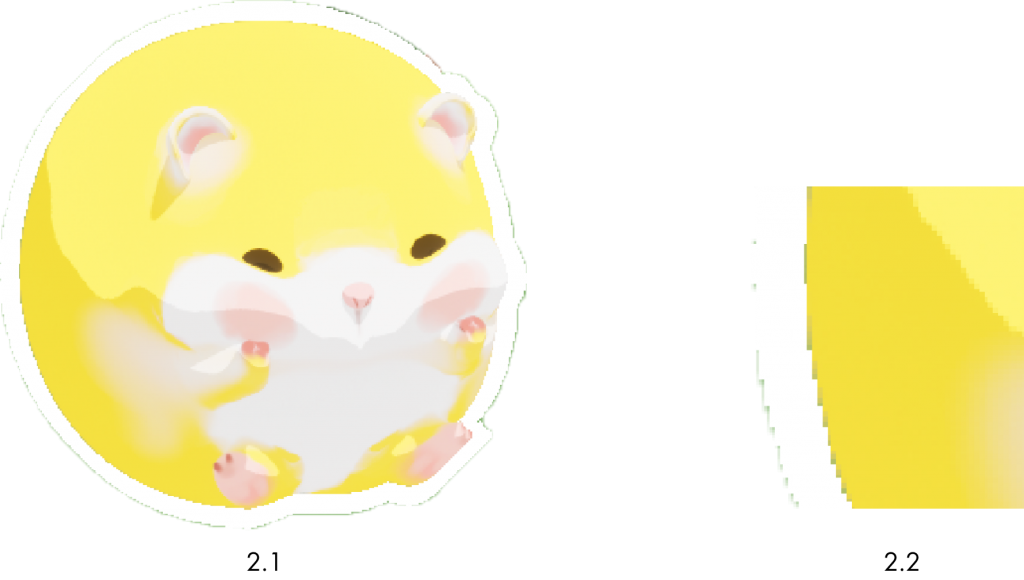
I tried adjusting the parameters, but the issue wasn’t fixed, so I returned to the first material for further testing
Iteration 3
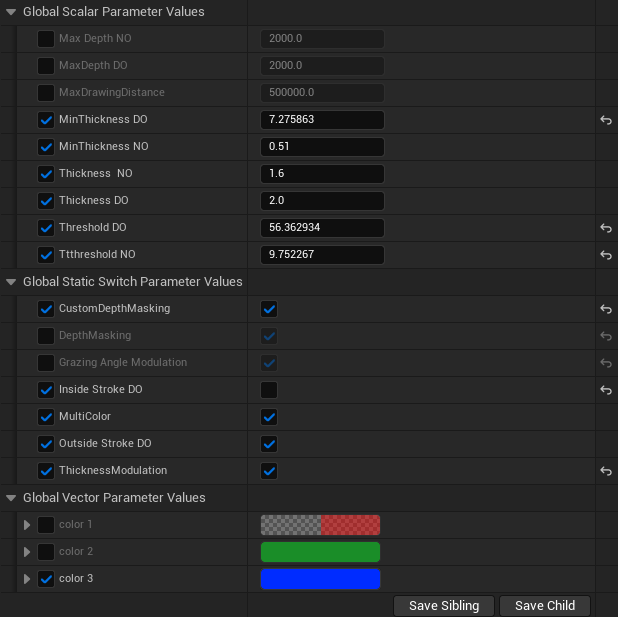
After returning to the material from Iteration 1, I turned off Inside Stroke DO and adjusted Threshold DO & NO to achieve the final effect.
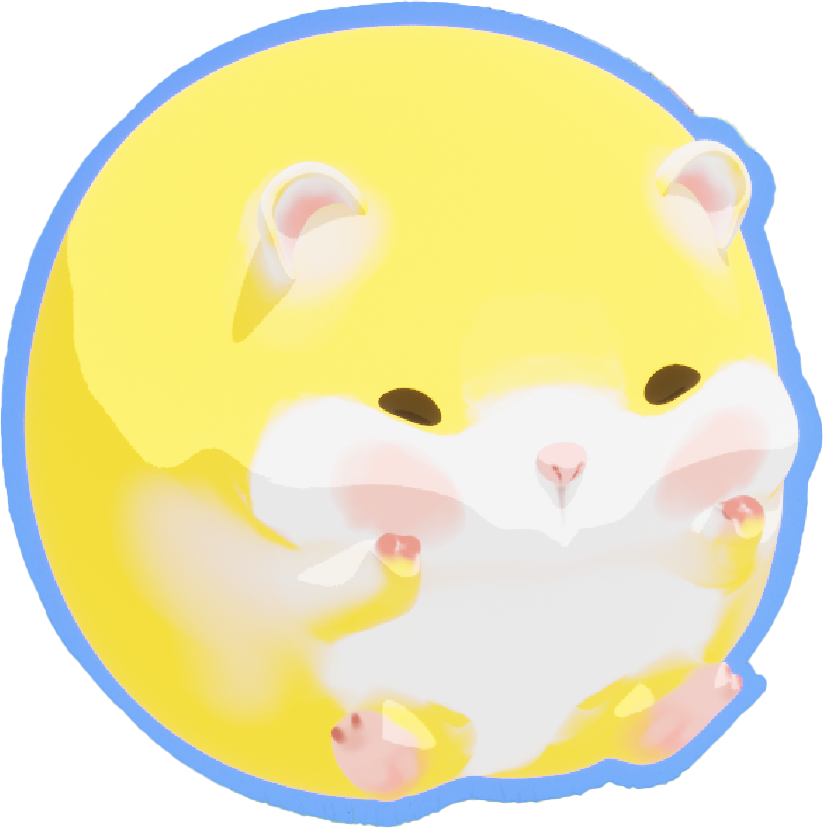
Final Render
Leave a Reply